Using Nume in the Web Application
Last updated: July 21, 2026
Learn how to use the web application
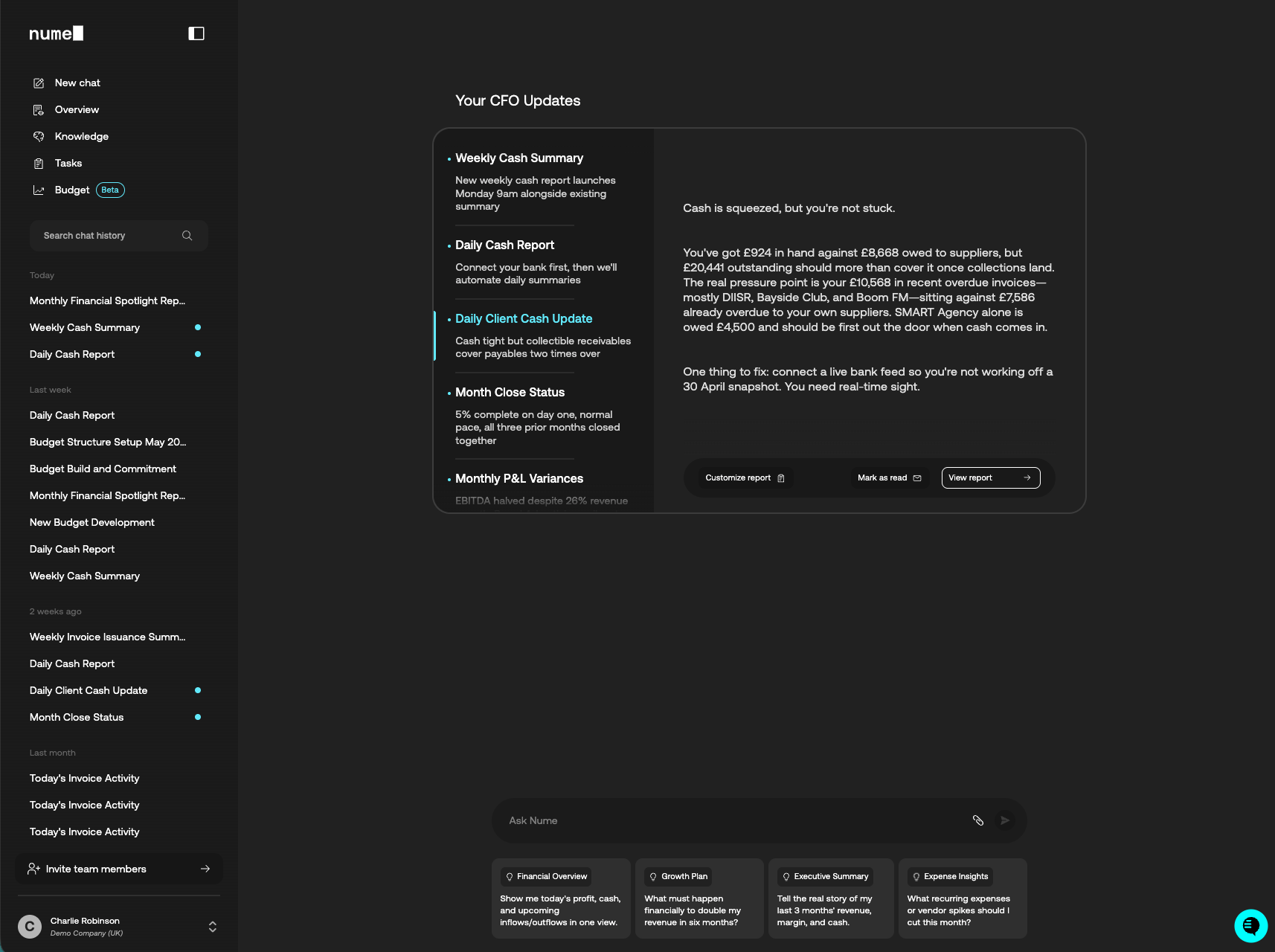
Start with Chat or Suggested Prompts
Nume is your chat-based financial co-pilot. Simply type a question or financial query into the "Ask Nume" chat box (e.g., "How did I do last month?"), and Nume will run the analysis for you.
After each response, Nume suggests three follow-up prompts based on your conversation. Click any suggestion to continue the analysis — it's a quick way to dig deeper without having to think of the next question yourself.
Nume's Artefacts
When you run a prompt, Nume generates a comprehensive financial report as an artefact:
Each report includes detailed analysis, visualizations, and strategic recommendations
You can ask follow-up prompts in the same conversation to dive deeper or refine the results
For complex queries, Nume asks clarifying questions first
Slides and Presentations
Nume can generate presentation slides based on your financial data. Ask Nume to create a slide deck (e.g. "Create a board update for last quarter") and it will build a set of slides with key metrics, charts, and talking points. You can export the finished deck as PowerPoint (PPT) or PDF for sharing with your team, investors, or board.
Navigating the Sidebar
The sidebar on the left gives you quick access to everything in Nume:
New chat — Start a fresh conversation with Nume
Overview — Your notification inbox showing proactive reports and unread messages
Memory — Browse the financial context Nume has learned about your business
Scheduled Tasks — View and manage scheduled tasks and proactive updates
Budget — Import (from Excel) of Create a budget from scratch. Run scenarios.
Live Views — See Financial Statements or live dashboards (canvases) instantly without having to wait for Nume to produce them.
The Overview Page
The Overview page is the first thing you see when you open Nume. It acts as your financial inbox, collecting all unread proactive reports and conversation updates in one place.
Each item in the list includes a short summary so you can quickly scan what's new. Click on any item to preview its details in the reading pane on the right, or select View conversation to open the full chat.
Items are automatically marked as read when you view them. You can also navigate the list using your keyboard's arrow keys.
If an item was generated by a proactive task, you'll see a Customize task option that takes you directly to the task's settings, so you can adjust the schedule or prompt.
Chat History
Below the navigation, you'll find your full chat history with a search bar at the top. All your previous conversations and reports are listed here, grouped by time period, so you can revisit and build on past analyses anytime.
Your Profile
At the bottom of the sidebar, click your name to access your profile and settings. From here, you can manage integrations (e.g., accounting systems, banks) and adjust how Nume tailors its insights to your business.